
What it does
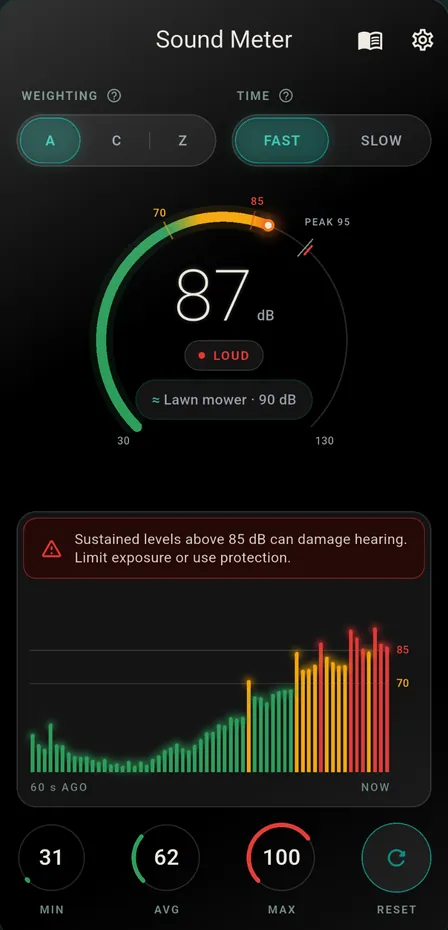
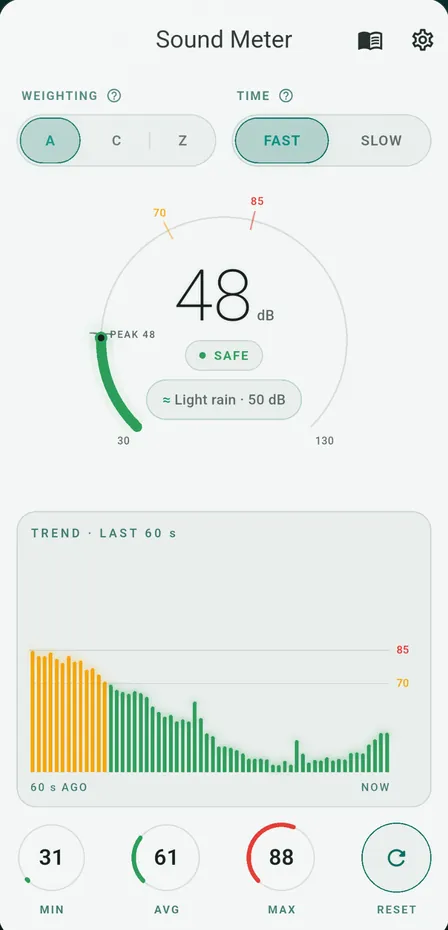
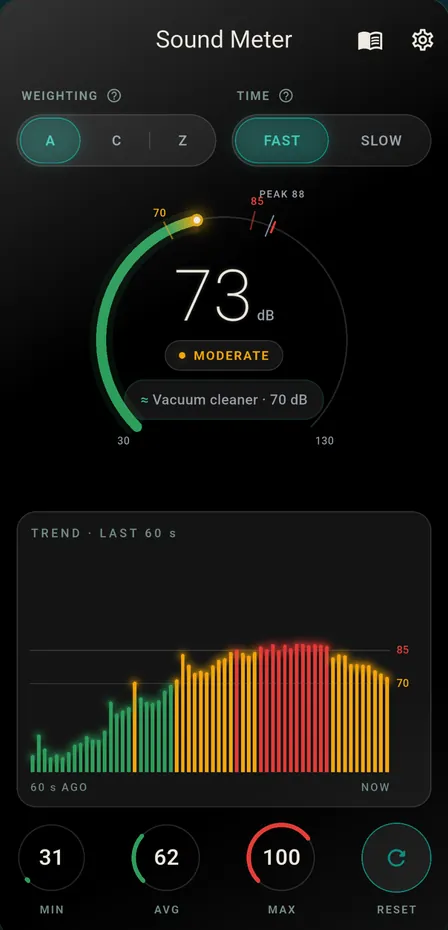
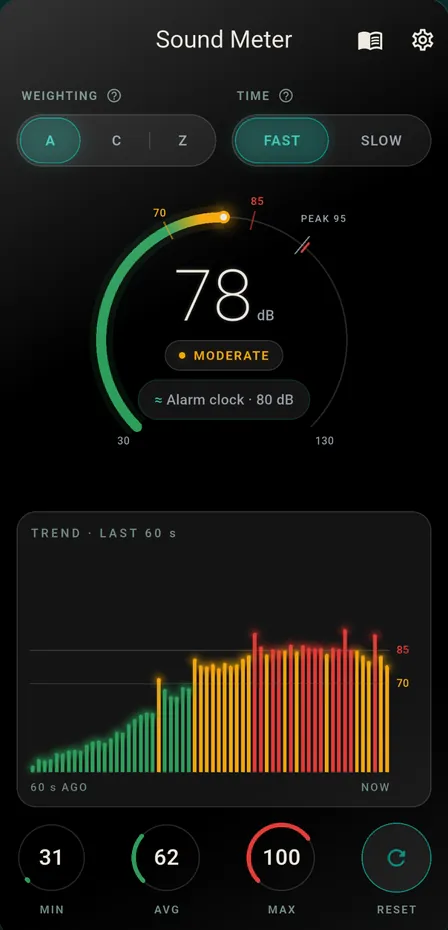
Sound Meter uses your phone’s microphone to show how loud it is around you. The level appears in decibels as a whole number on a ring that runs from green through amber to red, with a zone word under it: Safe below 70 dB, Moderate from 70 dB and Loud from 85 dB. A chip beside the number names the closest sound from a built-in list of 19 everyday examples, such as an alarm clock at 80 dB or a lawn mower at 90 dB.
You can switch between Fast and Slow response, which smooth the reading over a shorter or longer time. A PEAK mark on the ring keeps the recent high for about three seconds, and the session’s lowest, average and highest readings sit under the chart until you reset them. When the reading reaches 85 dB, a short hearing-safety note appears.
The number is a phone-microphone estimate, and the app says so. Phone microphones vary, so Settings has a manual offset slider. The A, C and Z settings apply a small fixed offset to the whole reading as an approximation; they are not the frequency filters a sound level meter uses. Sound Meter is a screening tool for everyday checks, not a certified instrument for workplace or legal measurements.
Who it is for
- Anyone who wants to know roughly how loud a room, street, appliance or tool is
- Parents checking the noise in a baby’s room
- Concert-goers and musicians who want a rough warning near 85 dB
- Students doing simple sound experiments
Features
- Live sound level in decibels, shown as a whole number from 20 to 130
- Zone word under the number: Safe below 70 dB, Moderate from 70, Loud from 85
- A hearing-safety note appears when the reading reaches 85 dB
- A ≈ chip names the listed sound closest to the current number
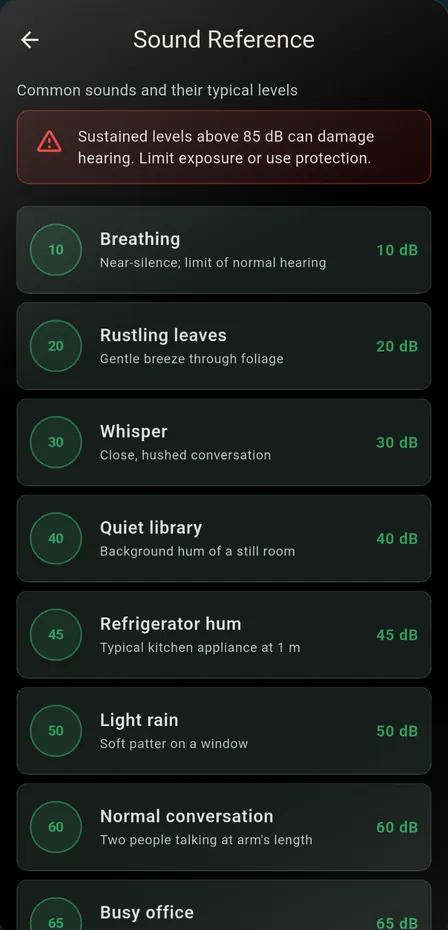
- A reference list of 19 everyday sounds, from 10 dB to 130 dB
- Peak hold: a PEAK mark keeps the recent high for about 3 seconds
- Session MIN, AVG and MAX, cleared with the Reset dial
- A bar chart of the last 60 readings
- Fast or Slow response smooths the reading over time
- A, C and Z settings shift the number by a small fixed amount
- A manual calibration offset in Settings
- Phone, landscape and tablet layouts
- Light, dark or system theme
- Audio not recorded or uploaded
- The microphone stops when the app is not on screen
- No account or sign-up
Languages
English and Urdu. The app opens in English; choose Urdu in Settings, under Language.
Privacy
The microphone is used only to work out the level on your phone. Audio is not recorded, saved or uploaded, and there is no account. Read the Sound Meter privacy policy.